How to turn off require sign-in on wakeup in Windows Settings
Problem: The alarm sound does not play on the logon screen after sleep in Windows 10 or Windows 11.
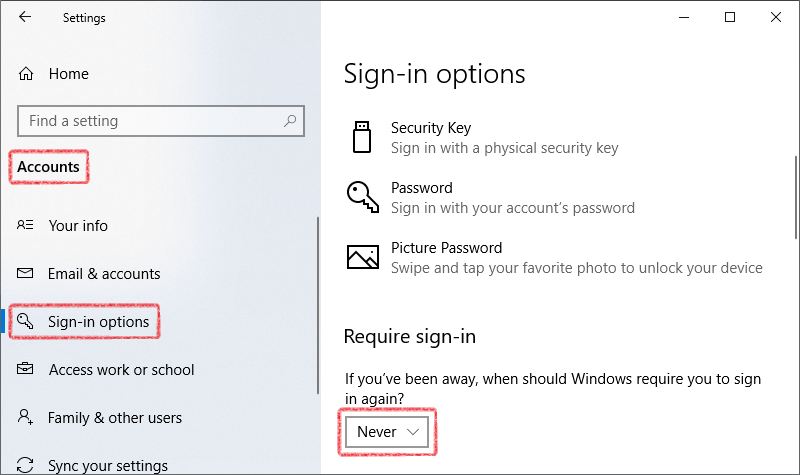
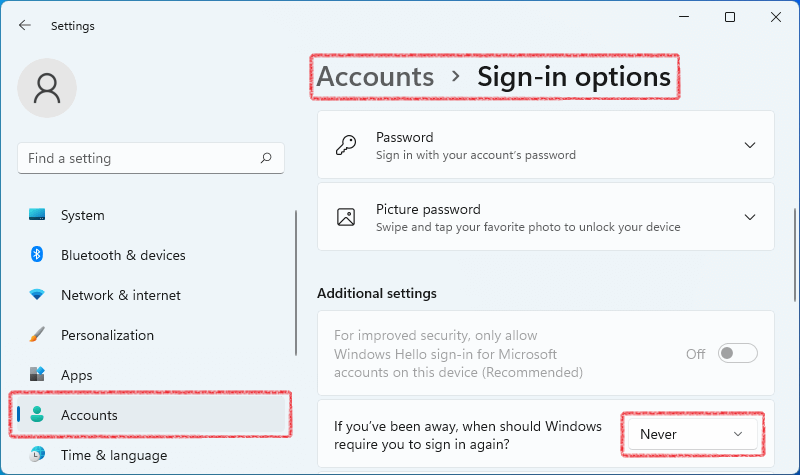
To stop Windows 10 or Windows 11 from asking to sign in after resuming from sleep, use these steps:
- Open Settings.
- Click on Accounts.
- Click on Sign-in options.
- Under the Require sign-in section, use the drop-down menu and select the Never option.
Once you complete the steps, you'll no longer be required to enter a password after waking up Windows from sleep.
Windows 10 Settings
Windows 11 Settings
Verify that Free Countdown Timer is allowed to wake the computer
Learn how to allow your computer to be woken up when it's sleeping by timed events.
1. Open the Control Panel in the Start menu.
2. Open Power Options in the Control Panel.
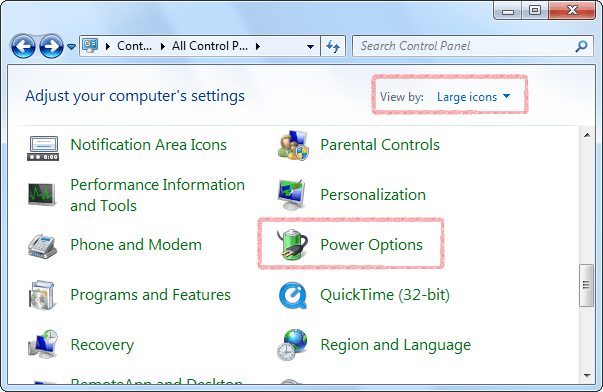
Note: If Power Options is not available, change View by to Large icons at the top right of the Control Panel.
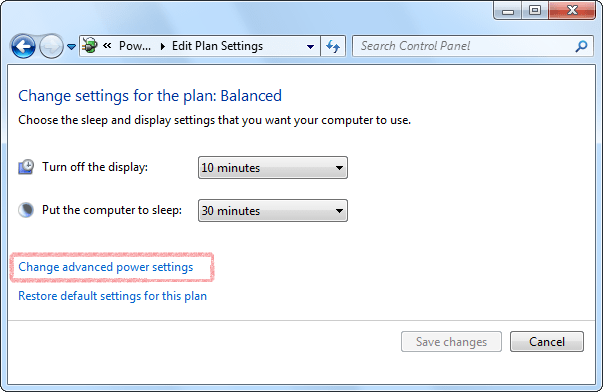
3. Select Change plan settings next to the active power plan.
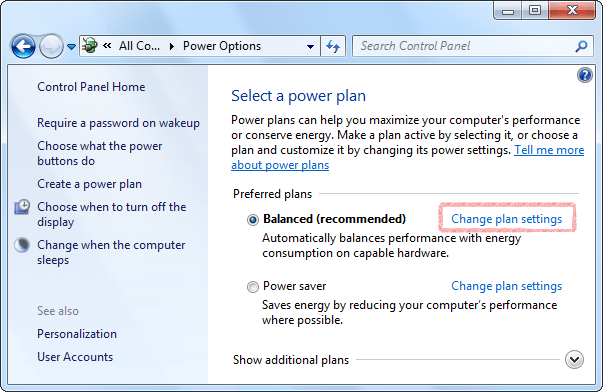
4. Select Change advanced power settings.
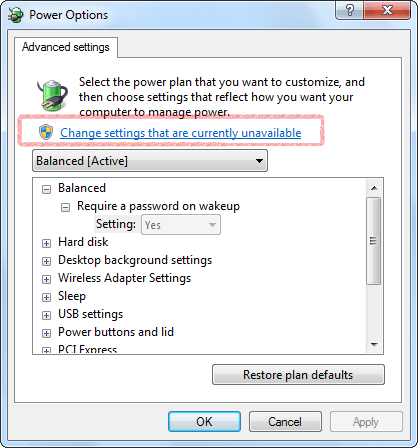
5. Select Change settings that are currently unavailable in the Power Options window.
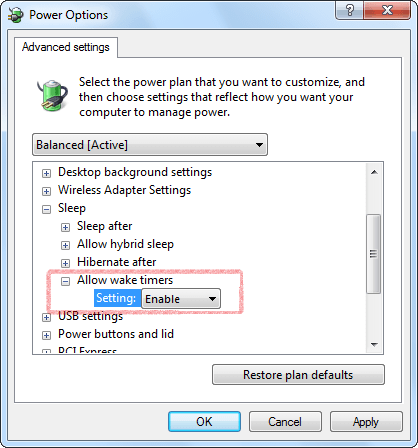
6. Set Allow wake timers to Enable under Sleep and then click OK to save the changes.
Note: If the wakeup function still not working properly, try to update BIOS of your computer.
Note: Free Countdown Timer will not wake up your computer when the laptop lid is closed.
 HE
HEהורדה טיימר בחינם
חבילת התקנה (4.6 MB)
גרסה ניידת (4.7 MB)
גירסה: 5.3
פורסם: 10/07/2025
מערכות הפעלה נתמכות:
Microsoft Windows 11/10/8.1/8/7/Vista/XP
בחסות של
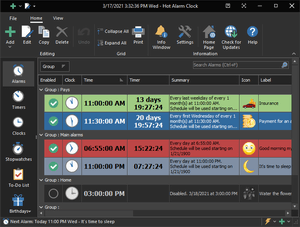
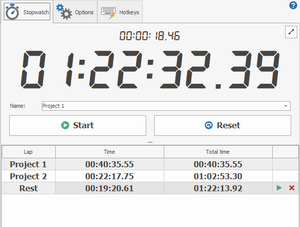
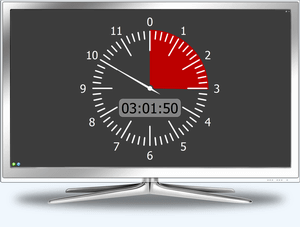
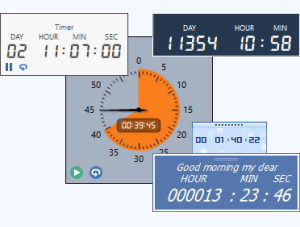
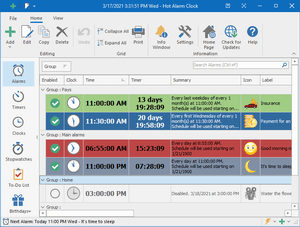
Hot Alarm Clock יאפשר לך להגדיר כל מרווח זמן לספירה לאחור, כולל חודשים או שנים. אתה יכול גם ליצור שרשראות של טיימרים, והמטרונום המובנה יודיע לך על הסוף המתקרב של הספירה לאחור.
שעוני מעורר וטיימרים של ספירה לאחור, שעוני עצירה ורשימת מטלות, תזכורות ליום הולדת ועוד ועוד.